Moderation (Admin panel › Marketplace › Moderation) is the review queue for workflows people publish to the Marketplace. Nothing goes public until a moderator approves it.
The queue
Section titled “The queue”- Pending: new listings and updates to live listings, oldest first. Updates carry an Update badge.
- Approved: live listings, most recently updated first. Click Load more live listings to see more.
Search by name, description, publisher or tags, and filter by Tags, Publisher, Language, Featured, and the Submitted and Updated dates.
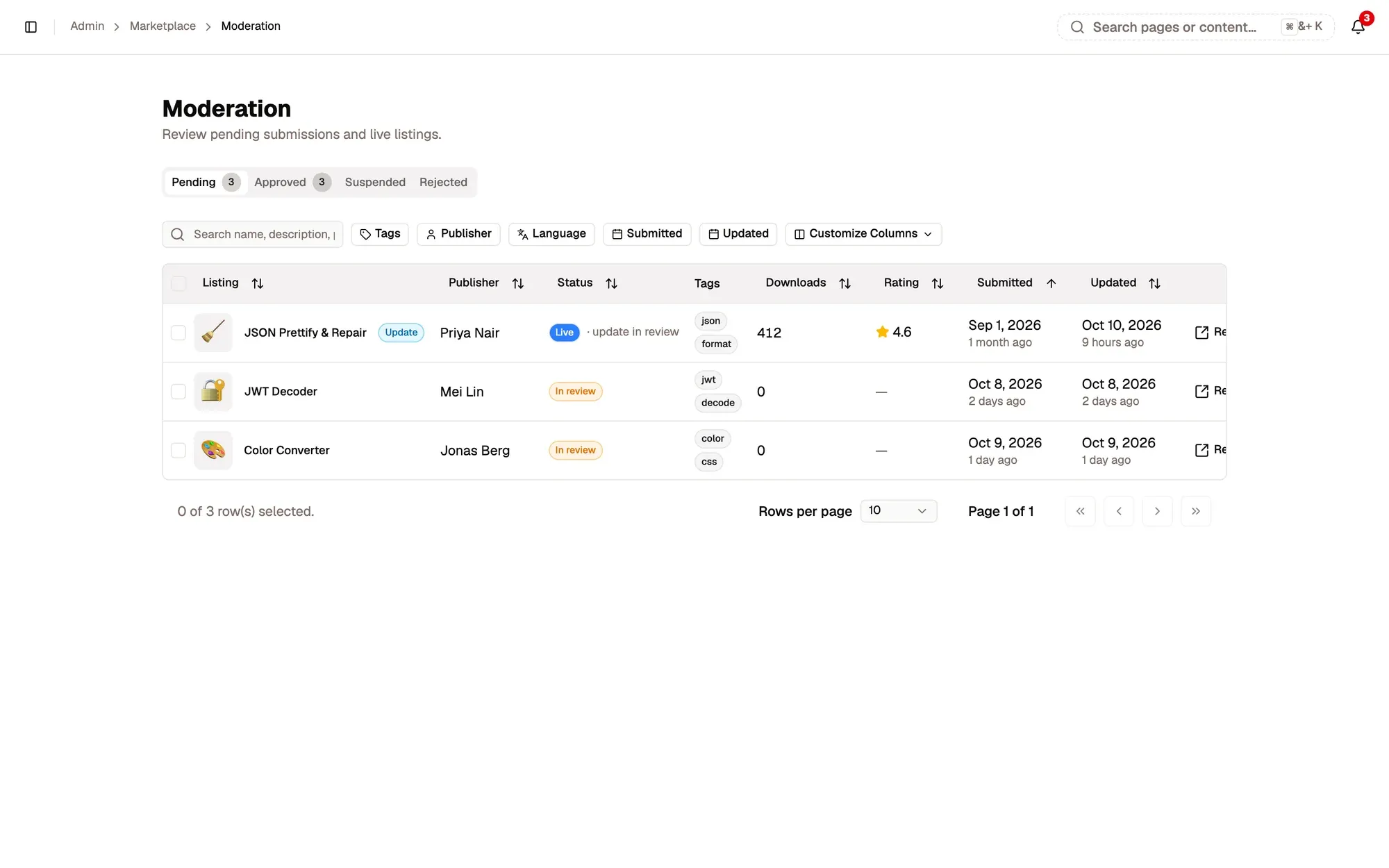
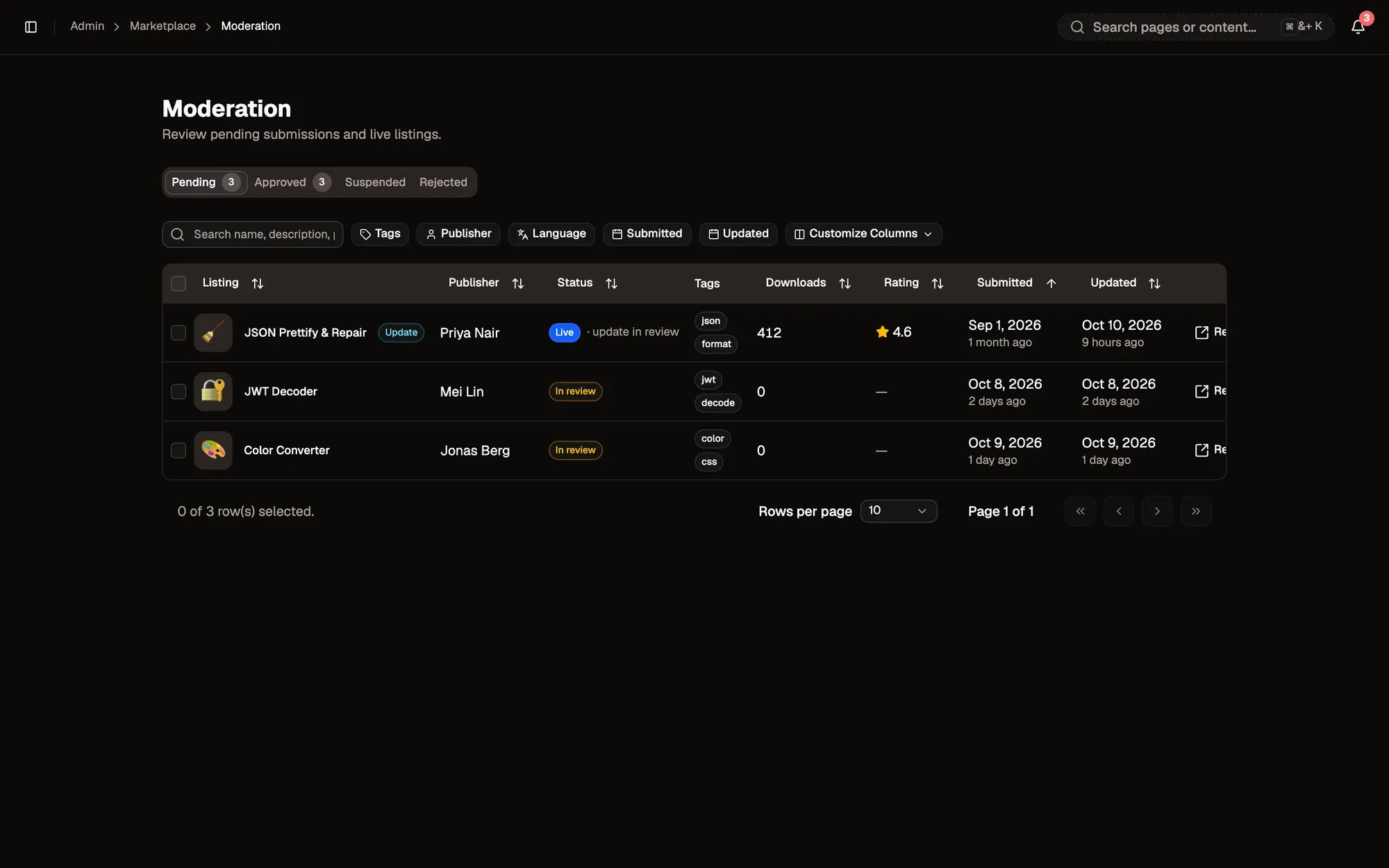
Numbered areas in the screenshot: 1. Pending and Approved queues; 2. Search and filters; 3. An update to a live listing; 4. Review.
Review a listing
Section titled “Review a listing”Step 1:Click Review on a row
In the Pending queue, click Review on the listing.
Step 2:Look at the read-only graph
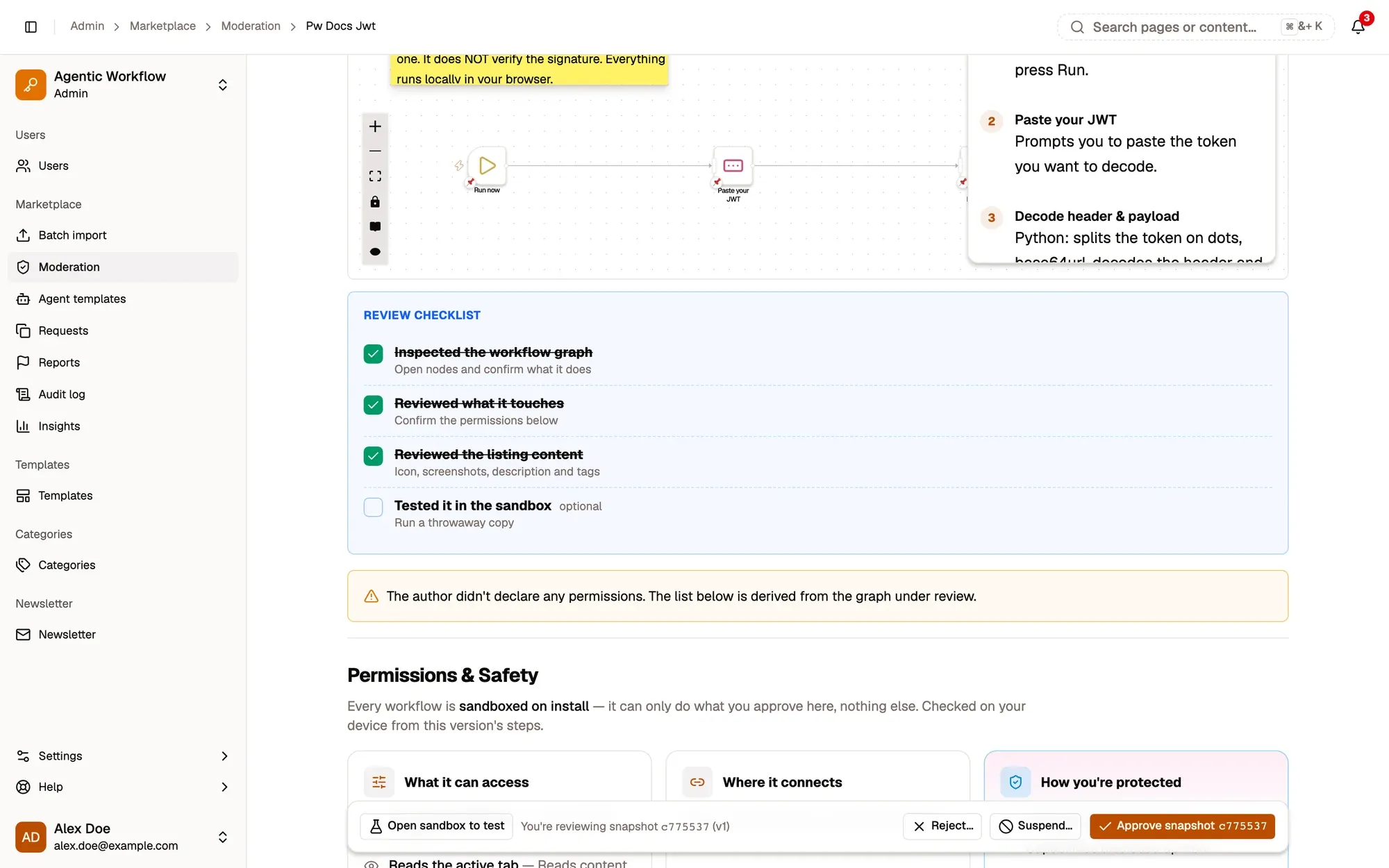
It is the exact version people will install. For an update, switch between Proposed and Live to compare.
Step 3:Check the permissions and the listing
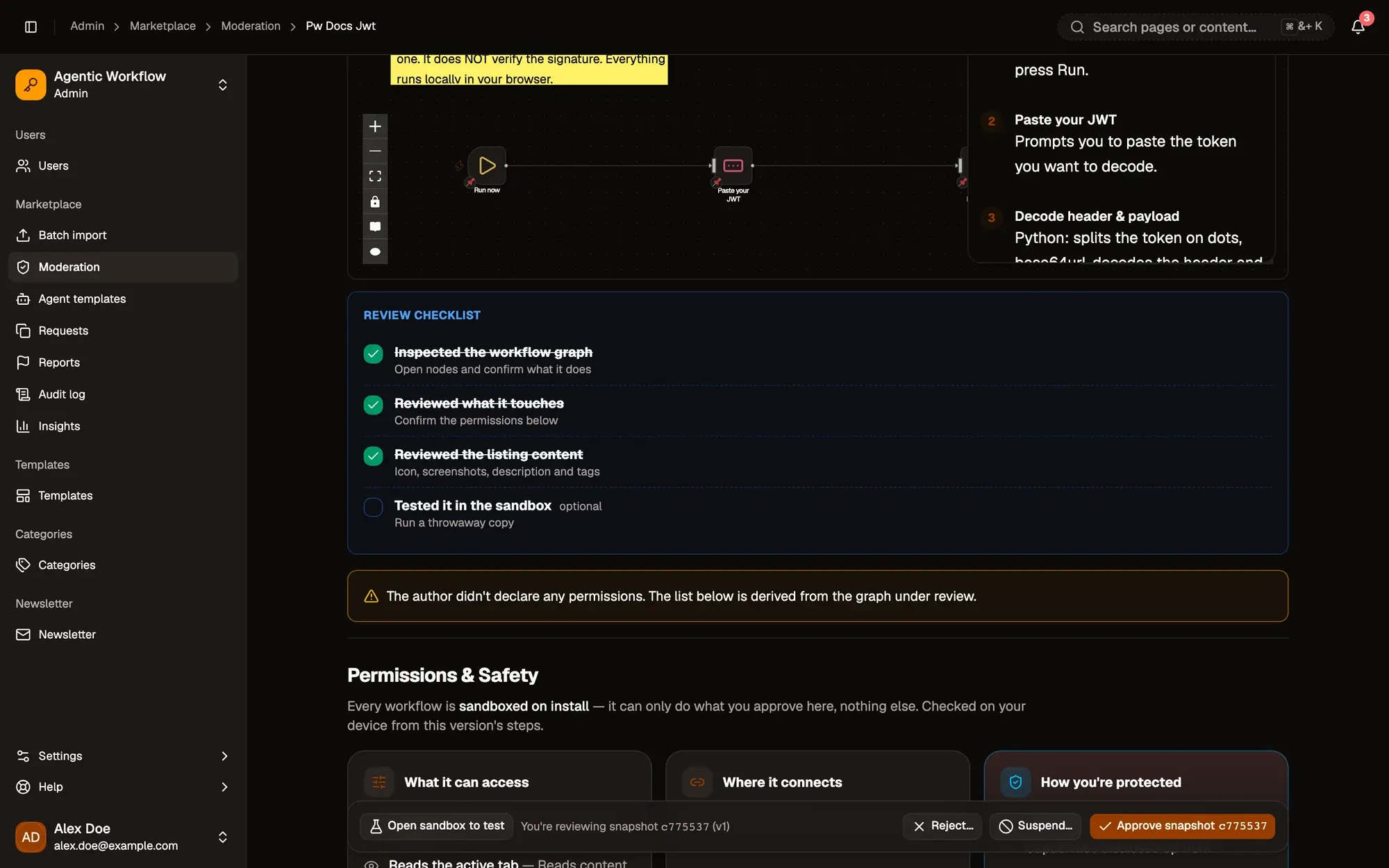
Scroll to Permissions & Safety. A red warning means the permissions the author declared don’t match what the workflow really does. Then read the listing content: icon, screenshots, description, tags and categories.
Step 4:Optionally, test it in the sandbox
Open sandbox to test runs a throwaway copy safely. It uses no saved accounts, opens a fresh tab, asks before every site, and shows all network activity. Use test accounts, not real ones.
Step 5:Tick the review checklist
The first three checks are required before you can approve. The sandbox test is optional.
Step 6:Decide
Click Approve snapshot (or Approve update), Reject… or Suspend…. Rejecting and suspending need a note the author will see.
Check: the listing leaves the Pending queue and the decision is in the Audit log.
If the author changes the listing while you review it, your decision isn’t saved and you are asked to load the new version.
From the queue you can also reject or suspend several listings at once. Bulk approve only works for AWFlow’s own official imports.
Suspend a live listing
Section titled “Suspend a live listing”Suspend… needs a reason and a note. The reason decides what happens to installed copies, the same way as for Reports: Malware or data theft and Safety risk stop every installed copy; Policy hides the listing but lets installed copies keep running with a notice.
Feature a listing
Section titled “Feature a listing”On an approved listing with no pending update, click Feature to put it in the Marketplace’s Featured banner. An optional Rank orders featured listings: lower numbers show first. Unfeature removes it.
More about featuring and what authors see: Publishing › Admin: featuring a listing.