Workflow history helps you go back to an older version of a workflow.
Understand workflow history
Section titled “Understand workflow history”AWFlow keeps a new version of the workflow each time you save it. The first version is the one you created or imported.
A run paused by Wait For Approval appears in the executions list as a waiting run, and can be approved, rejected, or cancelled from there.
View and restore a version
Section titled “View and restore a version”Open the workflow in the editor. Everything happens in the Version history popover at the top right:
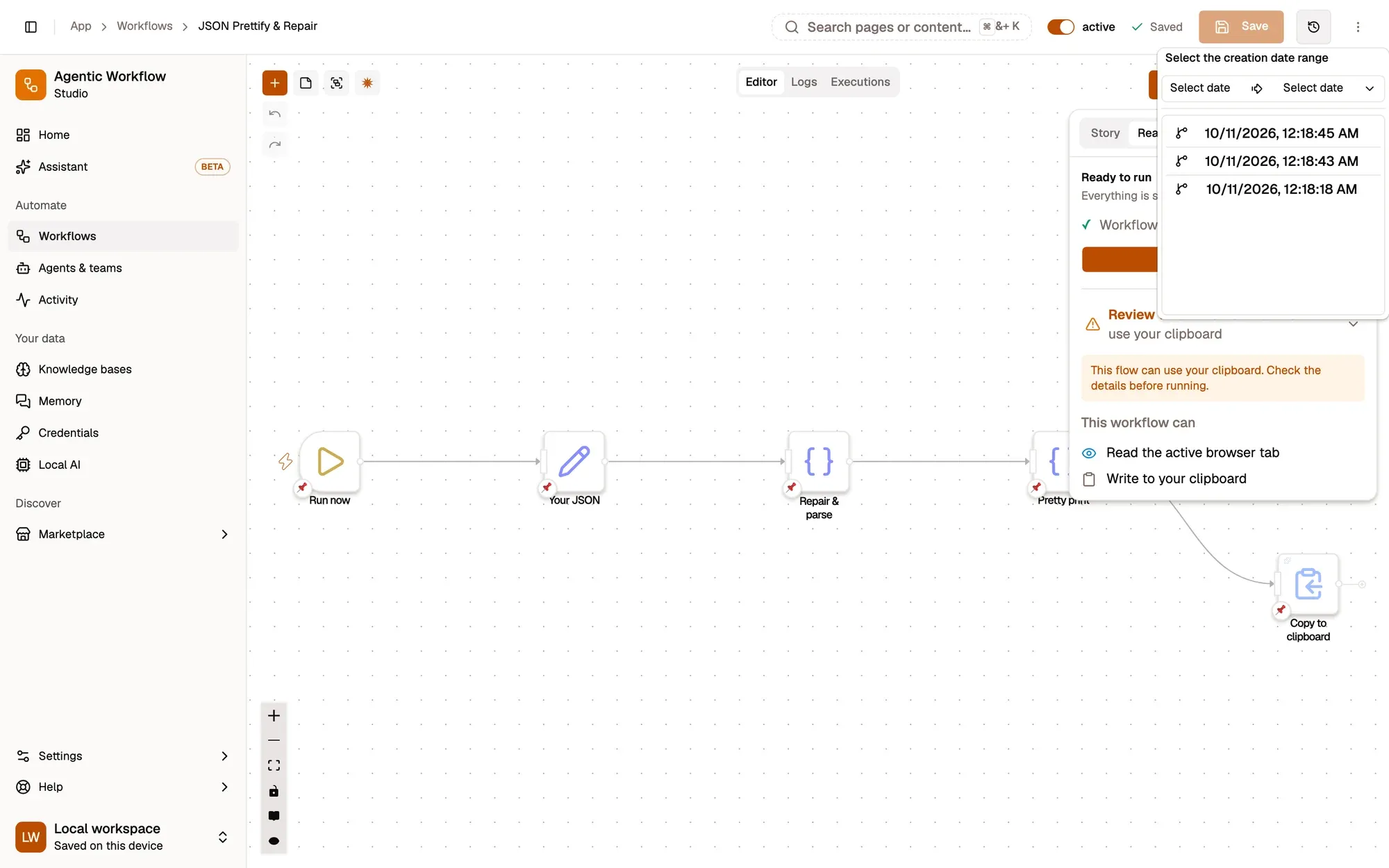
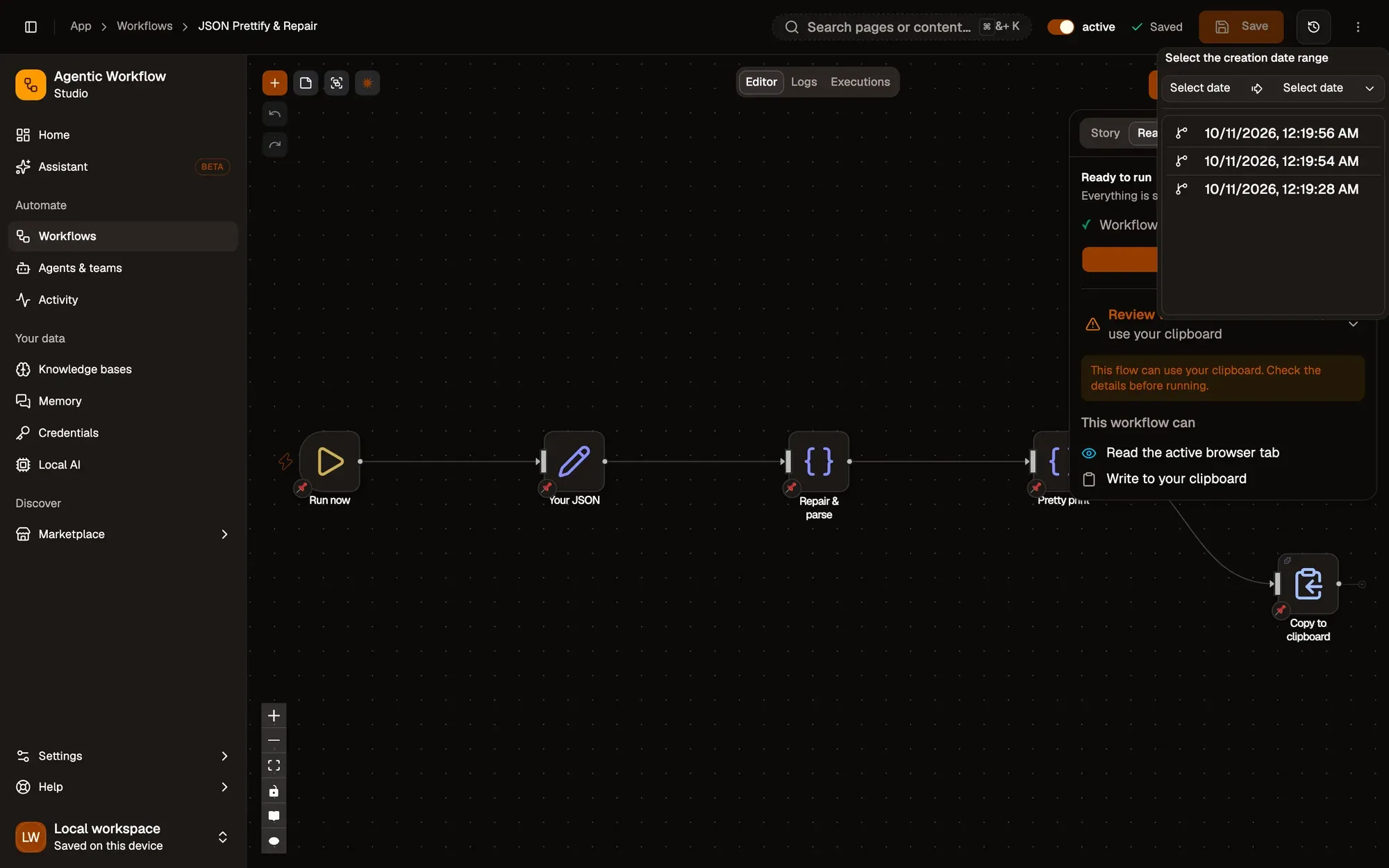
Numbered areas in the screenshot: 1. Version history; 2. Creation date range; 3. A saved version.
To keep the version you picked, make it the current one: change something (move a step, for example), then click Save. Saving keeps a new version, so the newer ones stay in the list. To go back to the newest version instead, click the first version in the list, or reload the page.
The list is read when the editor opens: reload the page to see a version you have just saved.