An AI workflow can look fine on the three examples you tried, then fail on the fourth. Test runs run your workflow on a whole list of test cases and score every answer, so you can see the pass rate, and see what changes when you switch model or rewrite a prompt.
(Test runs are sometimes called evaluations. A plain Run of a workflow is something else: see Run from the canvas.)
Set up test runs in three steps
Section titled “Set up test runs in three steps”When the workflow has no Evaluation Trigger yet, Test runs explains what it does and offers Set up test runs:
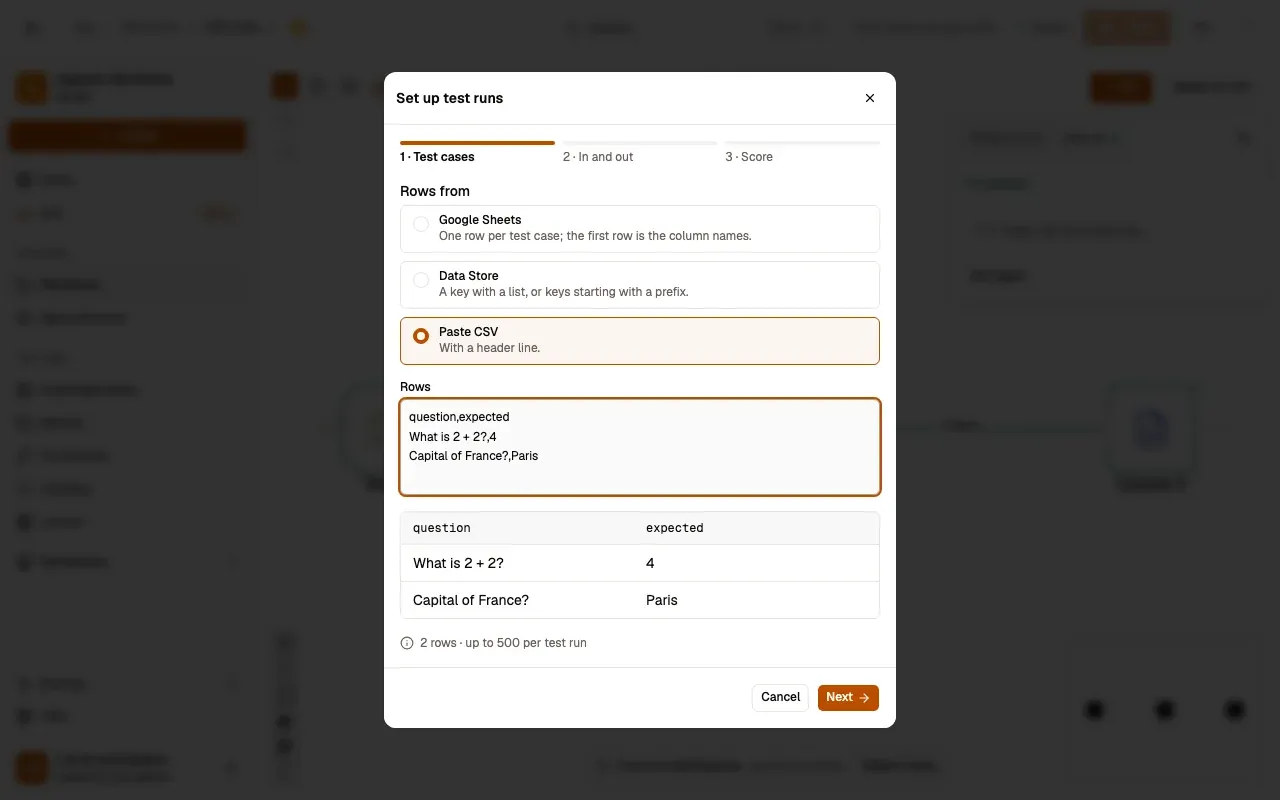
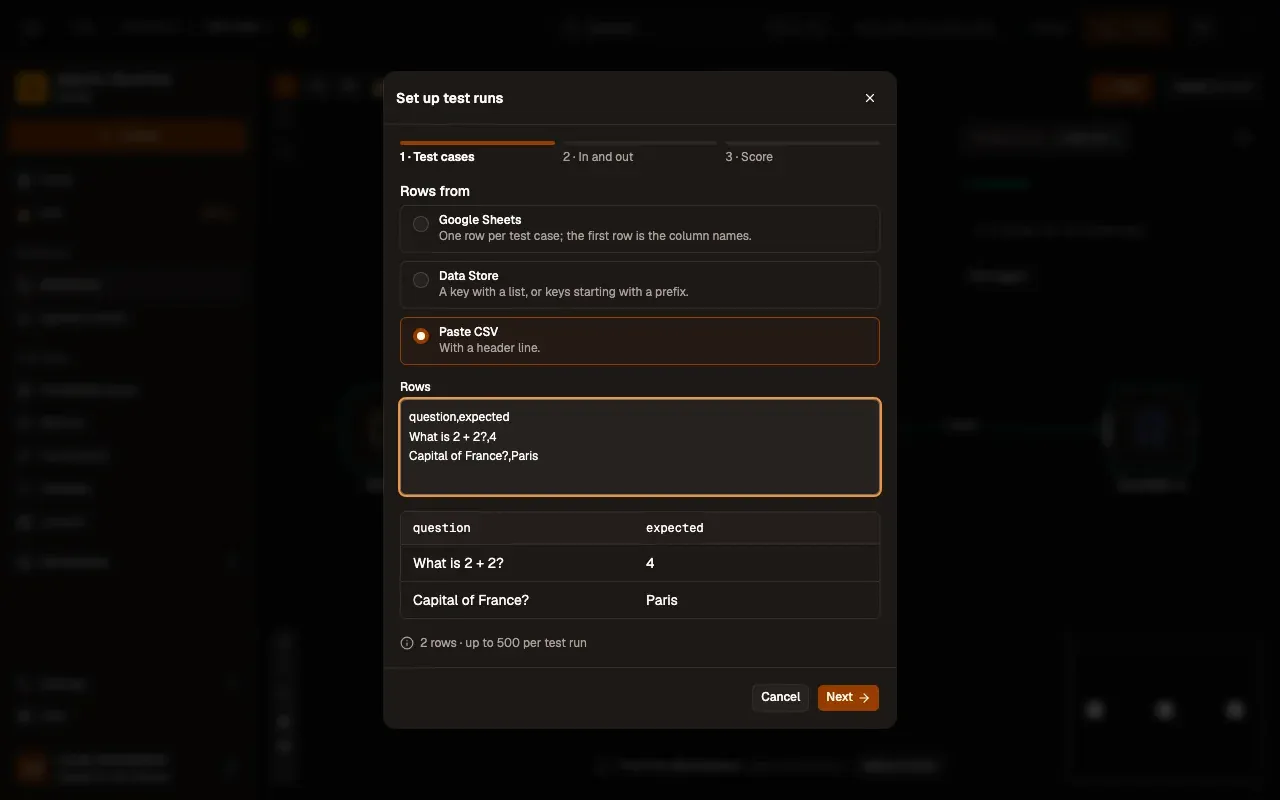
Step 1: Test cases
A Google Sheet (pick a Google connection, then paste the sheet’s link; the first row is the column names), a Data Store key (a key with a list, or keys starting with a prefix), or Paste CSV with a header line. A preview shows the first rows and the count (up to 500 per test run).
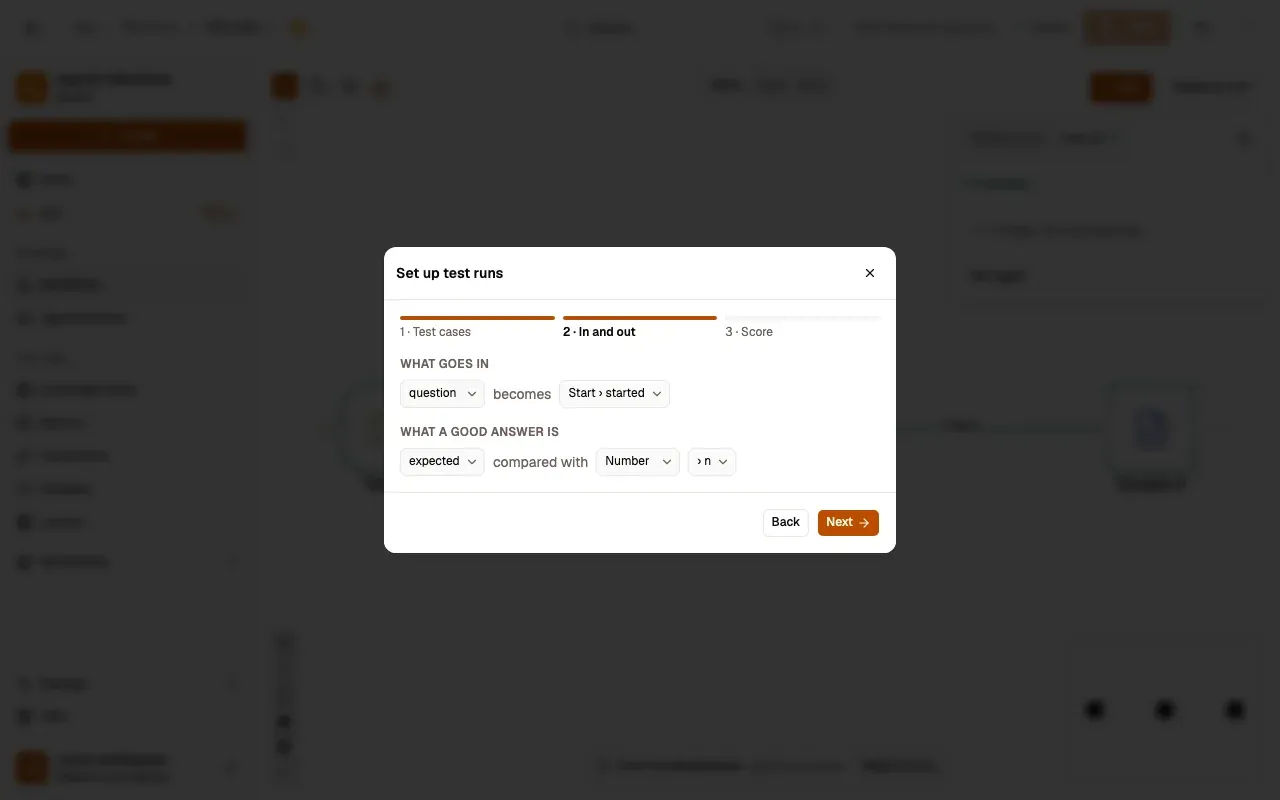
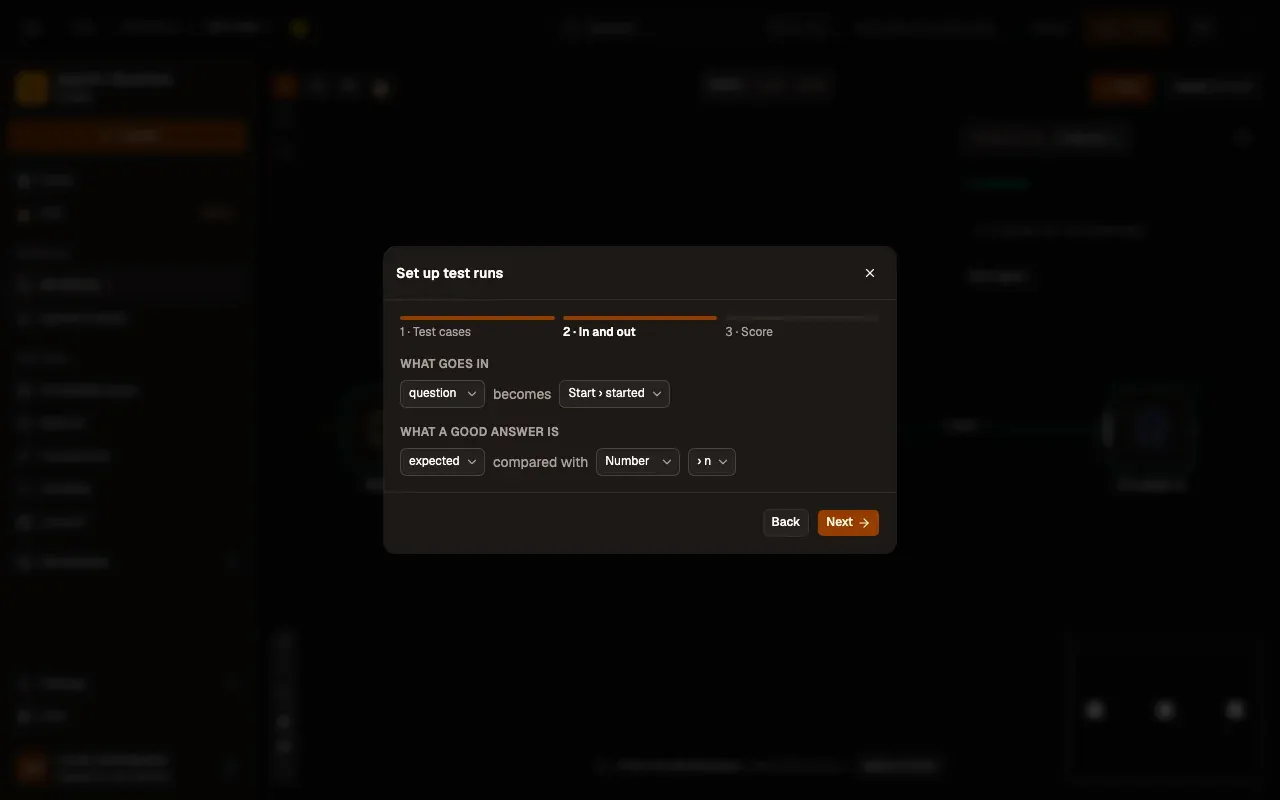
Step 2: In and out
The column that goes in (and what it becomes for the workflow), the column with a good answer, and the step to compare with (and its field).
Step 3: Score
How to score each answer (Score with), the judge model for an AI judge, and Pass at (between 0 and 1).
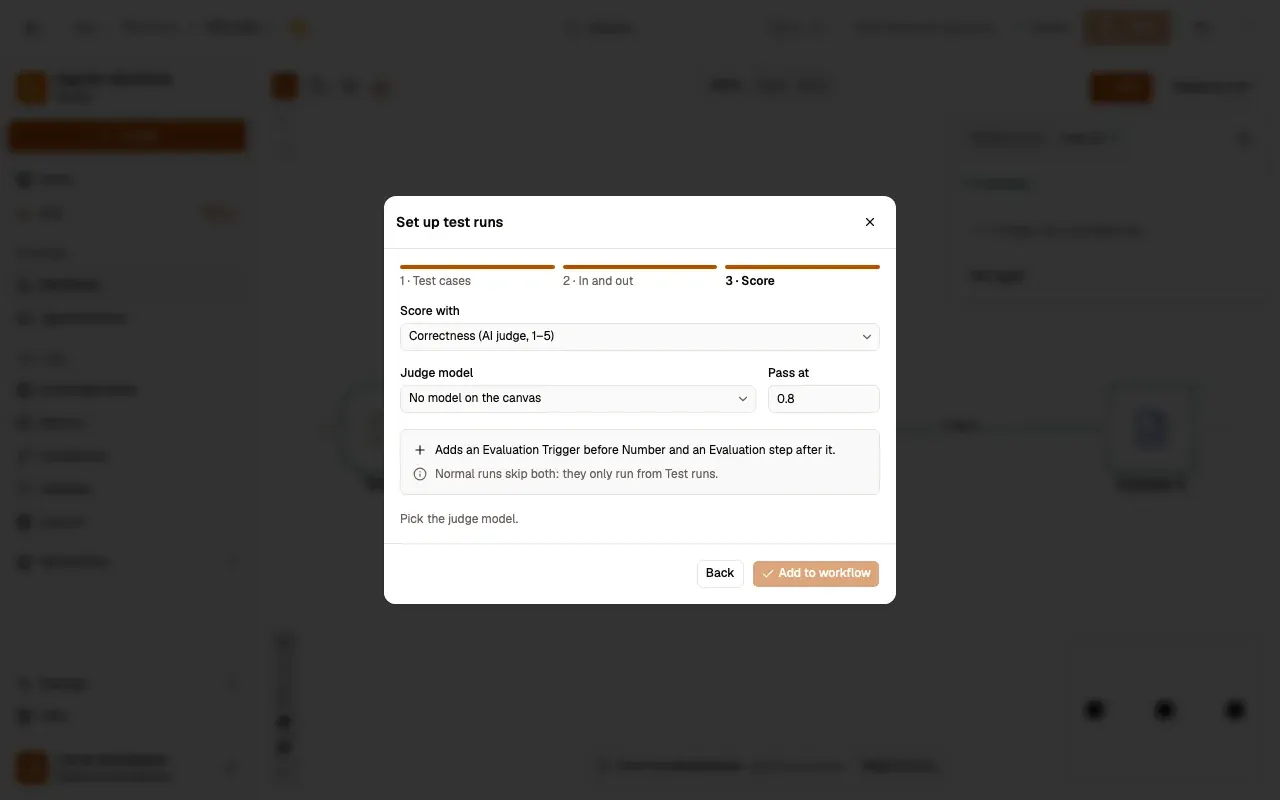
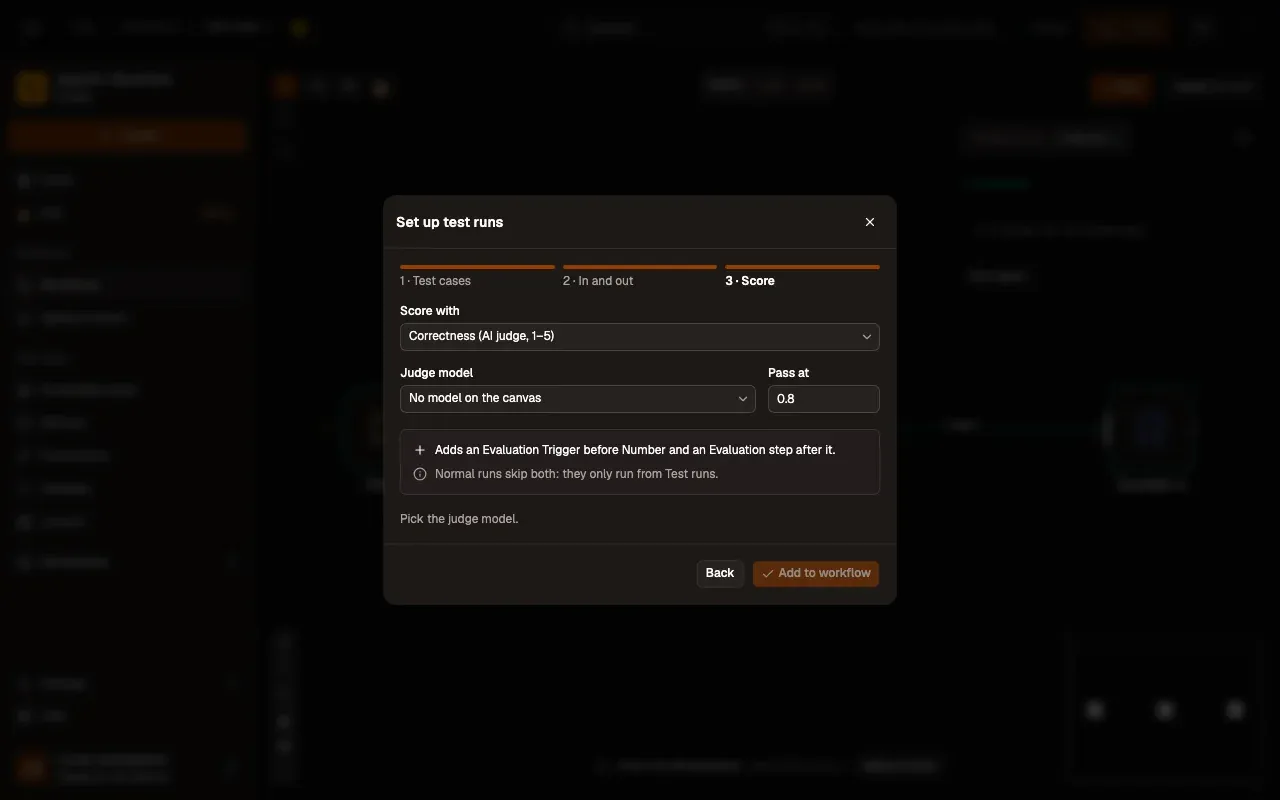
Add to workflow adds an Evaluation Trigger before the step and an Evaluation step after it, linked, with an Added pill; the toast offers Run now. Normal runs skip both: they only run from Test runs. Each test run reads the rows again, so you can keep editing the sheet. You can also add the two steps yourself, as below.
What you need
Section titled “What you need”- An Evaluation Trigger in the workflow, holding the test rows: a Data Store list, a Data Store key prefix, pasted CSV, or a Google Sheet (up to 500 rows). You can grow the dataset from real runs: Add this run’s input to the test dataset on a run in Runs. It sits next to the workflow’s normal trigger and never starts a normal run.
- At least one Evaluation step set to Set metrics, that scores each answer: exact match, contains, similar text, category, tools used, an AI judge from 1 to 5, or your own number.
- Optional: an Evaluation step set to Is it an evaluation? before emails, posts and other side effects, so test runs skip them.
Run an evaluation
Section titled “Run an evaluation”- Save the workflow. Test runs always run the saved version.
- Open the canvas ⋯ menu › Test runs.
- Press Run evaluation. AWFlow runs the workflow once per test row, one after the other. Stop ends it early.
- When it finishes, the run appears in the list with its pass rate, the judge average (with an AI judge), the tokens used and the typical time per case.
Open a test run to see each case: its inputs, the outputs you kept with Set outputs, and each metric. Failed shows only the cases that failed; Open run opens the full run of that case in Runs.
Compare two test runs
Section titled “Compare two test runs”Pick two test runs to Compare. You see, per metric, how it changed, and the cases that changed, regressions first (cases that passed before and fail now, Pass → Fail).
A good routine: run an evaluation, change one thing (the model, the prompt, a setting), save, run it again, compare.
Good to know
Section titled “Good to know”- Test runs are kept on this device, the last 20 per workflow. Delete one with its ×.
- Each case is a real run, marked as an evaluation. Runs hides them unless you turn on Show evaluation runs.
- AI judges and AI steps use your models and their tokens, like any run.
Related
Section titled “Related”- Evaluation & testing: why and what to measure.
- Evaluation Trigger and Evaluation.